More Info on "Home Screen"
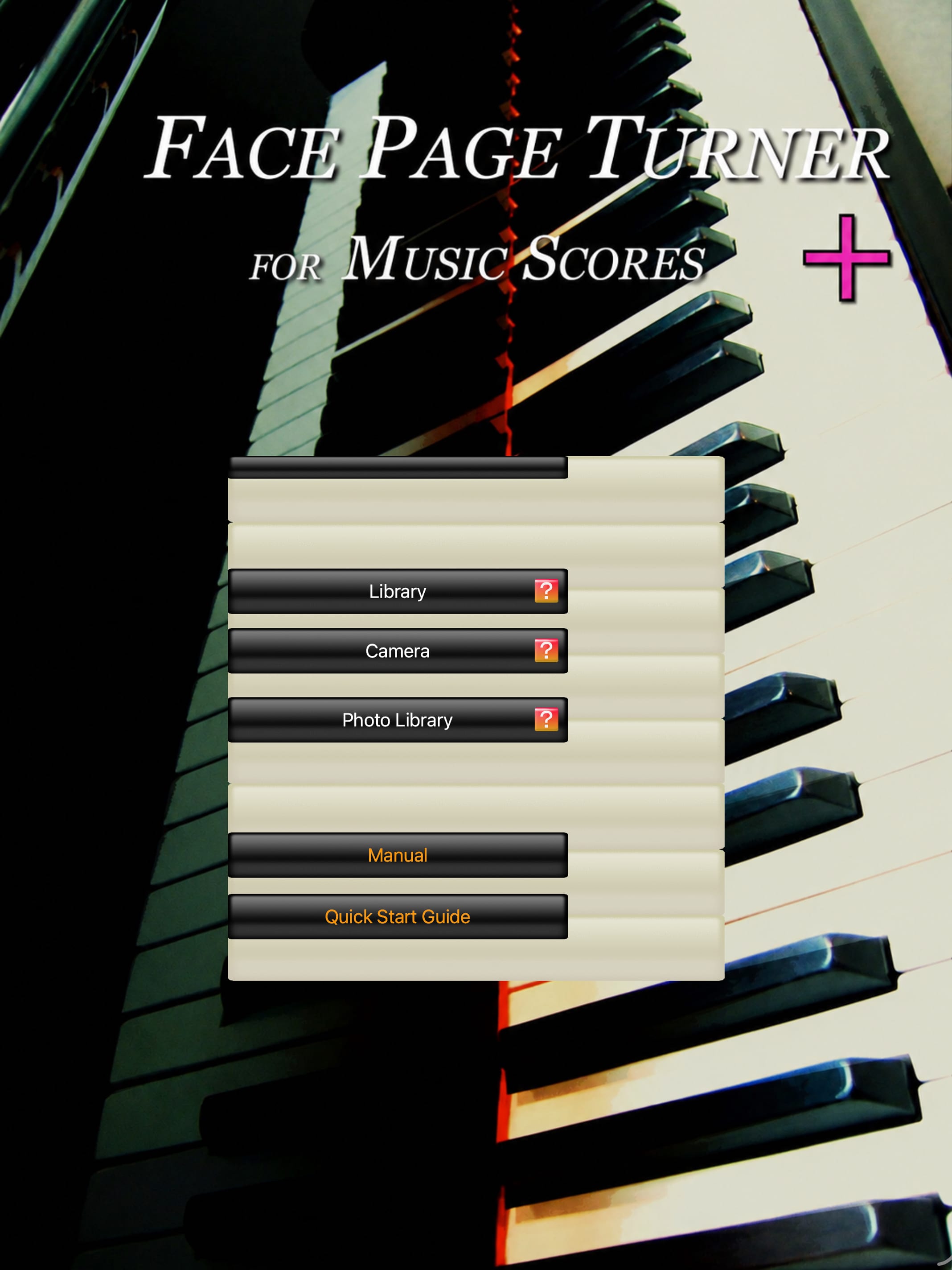
The Home screen has five buttons: "Library", "Camera", "Photo Library", "Manual", and "Quick Start Guide".
1.
Tapping the "Library" button opens the "Library" screen. The Library screen shows all score files imported and saved in FPT+. You can manage and edit score files there.
2.
Tapping the "Camera" button opens the "Camera" screen. On the Camera screen, you can import score images into FPT+ by photographing scores with the device camera.
3.
Tapping the "Photo Library" button opens the standard iOS Photo Library (Photos app) screen. Selecting an image on the Photo Library screen imports the selected image into FPT+.
4.
Tapping the "Manual" button opens the "Manual" screen (this screen). At the top of the Manual screen, there are three buttons: "Test Face Scan", "Test Voice Scan", and "Back to Home".
Tapping "Test Face Scan" opens the Face Scan score viewer so you can test Face Scan. Tapping "Test Voice Scan" opens the Voice Scan score viewer so you can test Voice Scan.
Tapping the "Back to Home" button returns to the "Home" screen.
Tapping "Test Face Scan" opens the Face Scan score viewer so you can test Face Scan. Tapping "Test Voice Scan" opens the Voice Scan score viewer so you can test Voice Scan.
Tapping the "Back to Home" button returns to the "Home" screen.
5.
Tapping the "Quick Start Guide" button displays the Quick Start Guide. The Quick Start Guide is loaded from dedicated online data. Its screen layout and functions are the same as the Manual screen.
