More Info on "Score Viewer for Voice Scan"
The "Score Viewer for Voice Scan" screen has a large "Score View" in the center that displays the score, and an "Information Area" at the top that shows Voice Scan information and page numbers.
At the lower right are left/right arrow buttons for manually turning pages and a double-left-arrow button for returning to the first page. At the bottom of the Score View is a slider for manually scrolling through pages.
There are also a "Start/Stop Voice Scan" button at the lower left and a "Show Voice Commands" button at the lower center.
In addition, there are "Show/Hide Preferences" at the upper left and "Back to Previous Screen" at the upper right, for a total of seven buttons.
At the lower right are left/right arrow buttons for manually turning pages and a double-left-arrow button for returning to the first page. At the bottom of the Score View is a slider for manually scrolling through pages.
There are also a "Start/Stop Voice Scan" button at the lower left and a "Show Voice Commands" button at the lower center.
In addition, there are "Show/Hide Preferences" at the upper left and "Back to Previous Screen" at the upper right, for a total of seven buttons.
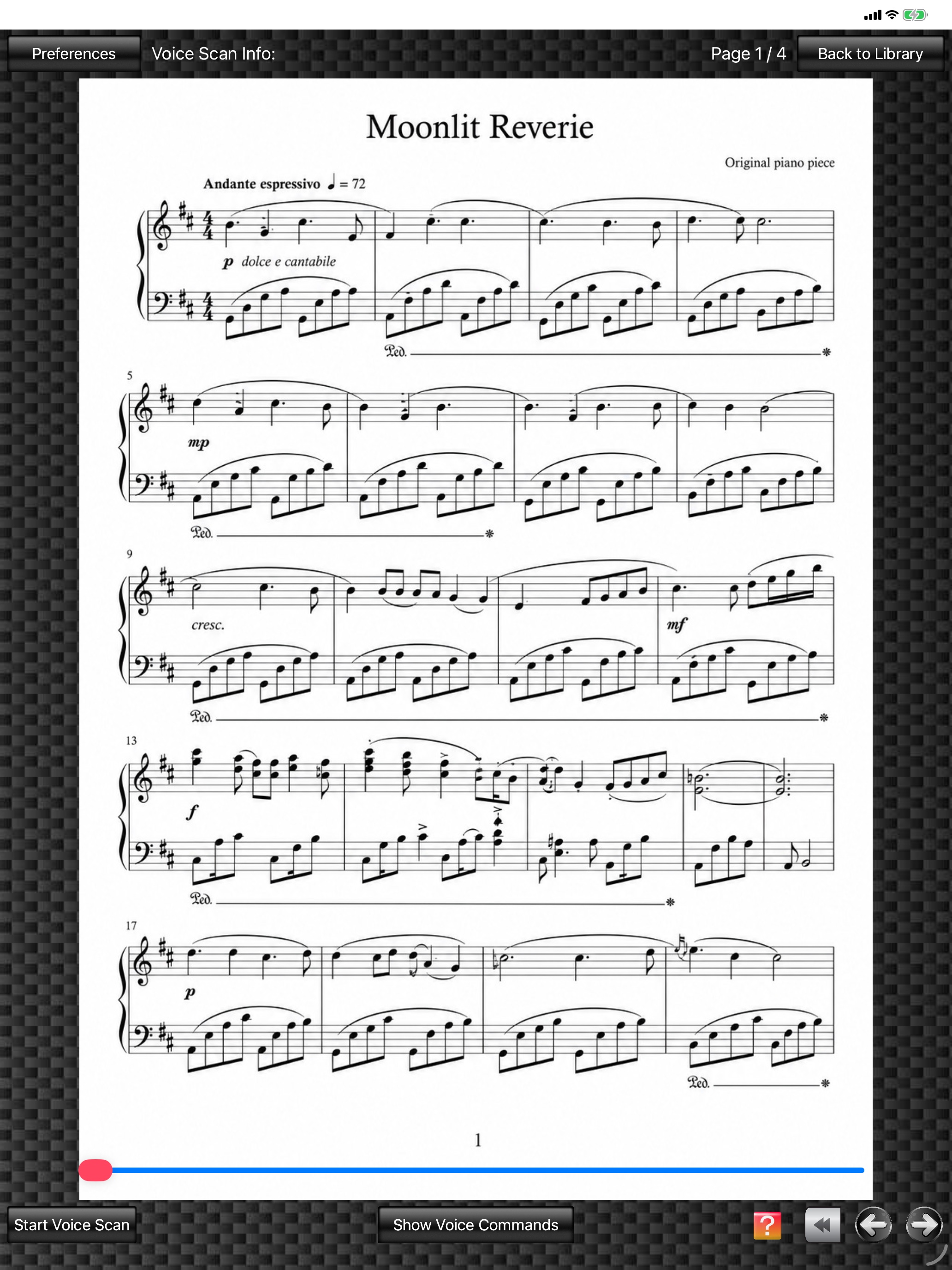
(The score image is an original image generated by AI.)
Also, turning the device to landscape orientation changes the Score View to a two-page spread. The positions of views and buttons may vary depending on the device size and other conditions.
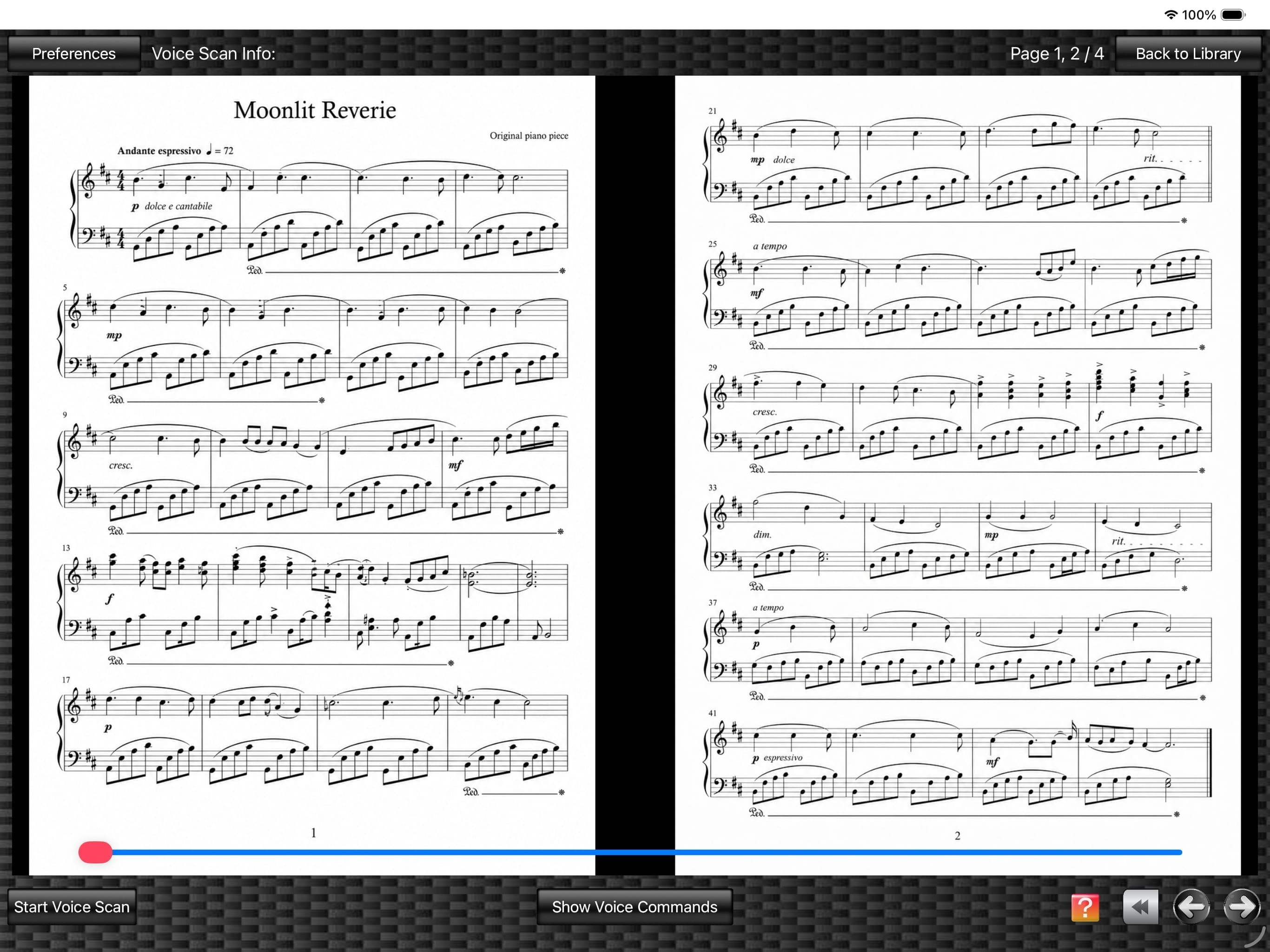
(The score image is an original image generated by AI.)
1.
You can manually turn pages using the left/right arrow buttons and the slider. While a score is displayed, tapping the score screen (Score View) toggles the slider display on and off.
You can also turn pages by swiping the score screen left or right with multiple fingers.
Tapping the double-left-arrow button returns to the first page.
You can also turn pages by swiping the score screen left or right with multiple fingers.
Tapping the double-left-arrow button returns to the first page.
2.
Tapping the "Start Voice Scan" button starts Voice Scan (voice detection), allowing you to turn the displayed score pages using three voice commands: "Next page", "Back page / Previous page", and "First page".
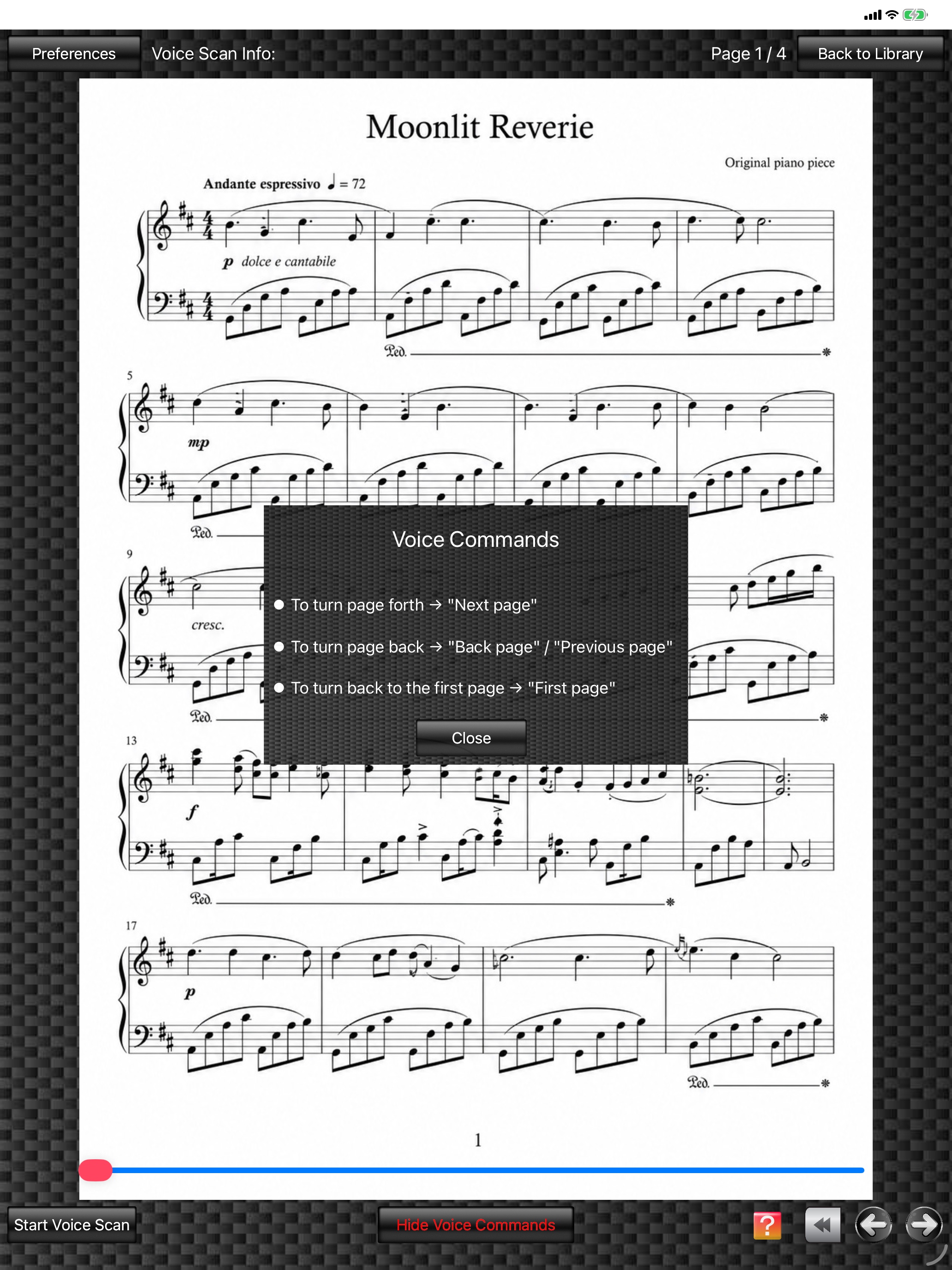
(The score image is an original image generated by AI.)
3.
Tapping the "Show Voice Commands" button displays the "Voice Commands" window, where you can check the voice commands.
To close the Voice Commands window, tap the same button again (its label becomes "Hide Voice Commands"), or tap the "Close" button in the window.
To close the Voice Commands window, tap the same button again (its label becomes "Hide Voice Commands"), or tap the "Close" button in the window.
4.
Tapping the "Show Preferences" button displays the "Preferences" window in the center of the screen. You can set the "Silence/Voice Threshold" and other settings.
5.
Tapping the "Back to Previous Screen" button returns to the screen that was open immediately before.
