"Order Editor" Details 2
On the "Order Editor" screen,
1.
If you press and hold a displayed image, [Cut|Copy|Paste] appears near it. Tapping "Cut" or "Copy" lets you cut or copy the selected image.
After selecting another score image, tapping "Paste" inserts the cut or copied image before the selected image. (See Fig. 1)
After selecting another score image, tapping "Paste" inserts the cut or copied image before the selected image. (See Fig. 1)
2.
Dragging a displayed image with two fingers lets you change the display order of the score pages. (See Fig. 2)
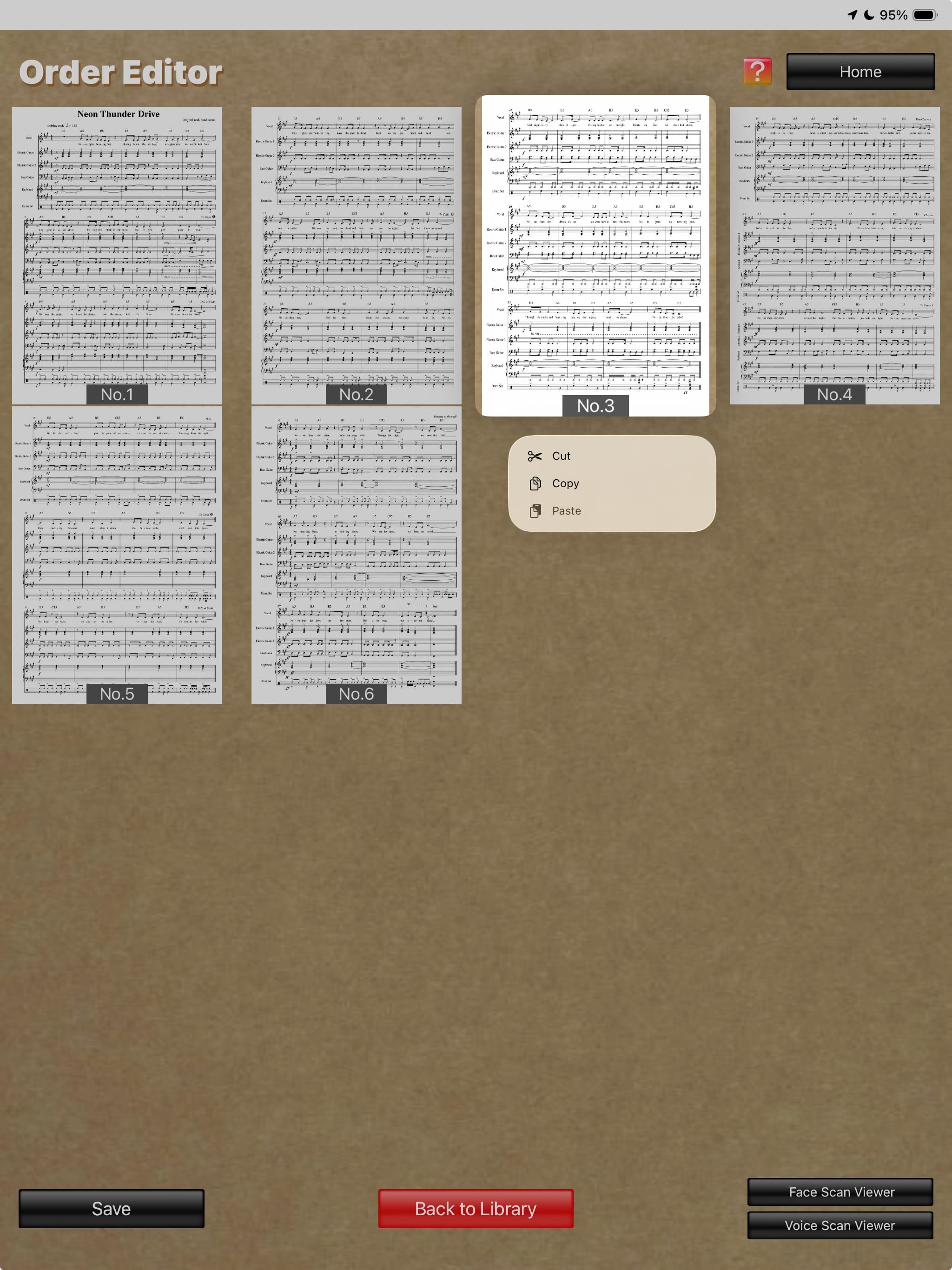
Fig. 1 Order Editor
(The score image is an original image generated by AI.)
(The score image is an original image generated by AI.)
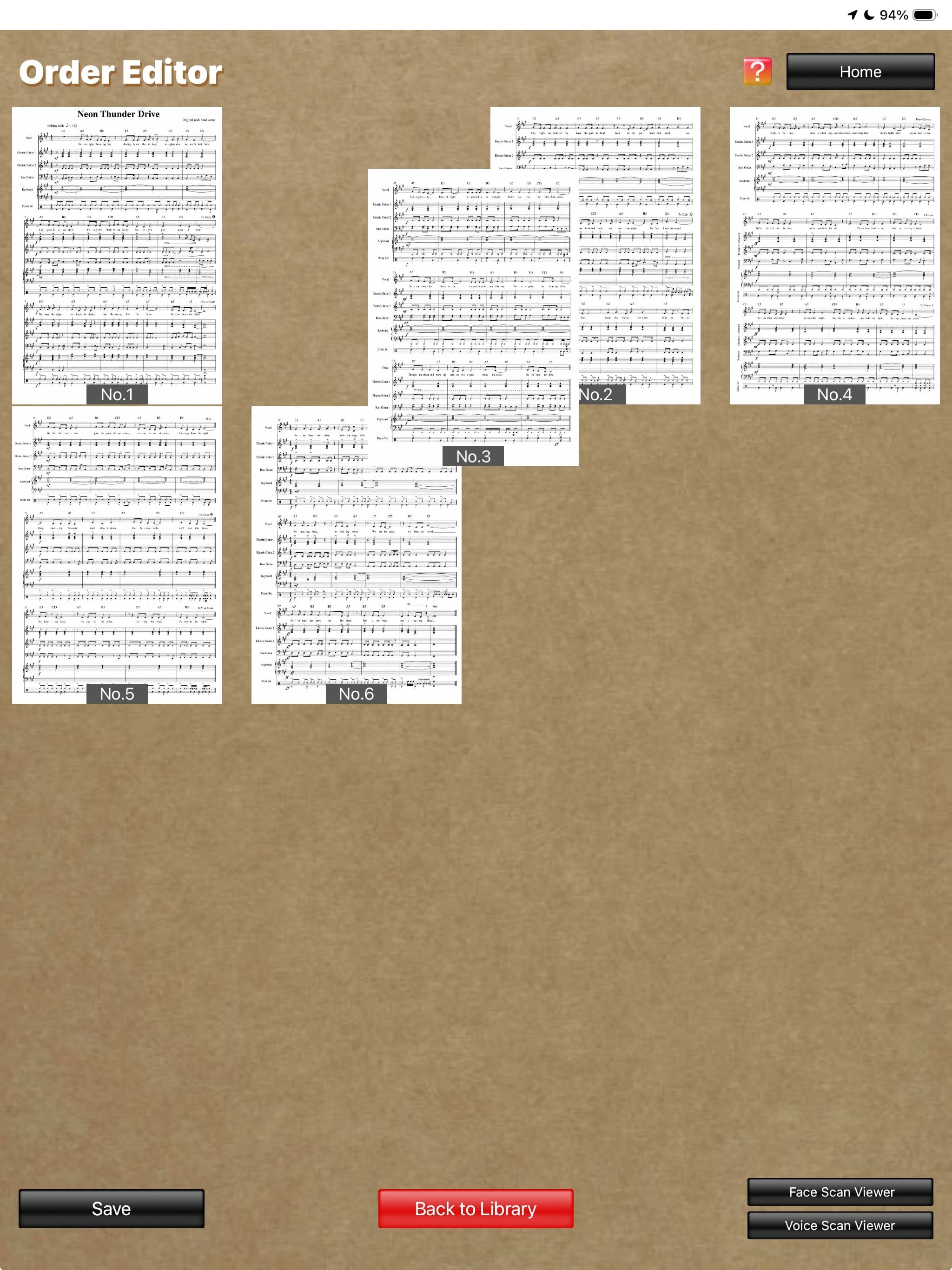
Fig. 2 Order Editor
(The score image is an original image generated by AI.)
(The score image is an original image generated by AI.)
3.
Tapping a score image on the "Order Editor" screen opens the "Enlarged View" screen. (See Fig. 3)
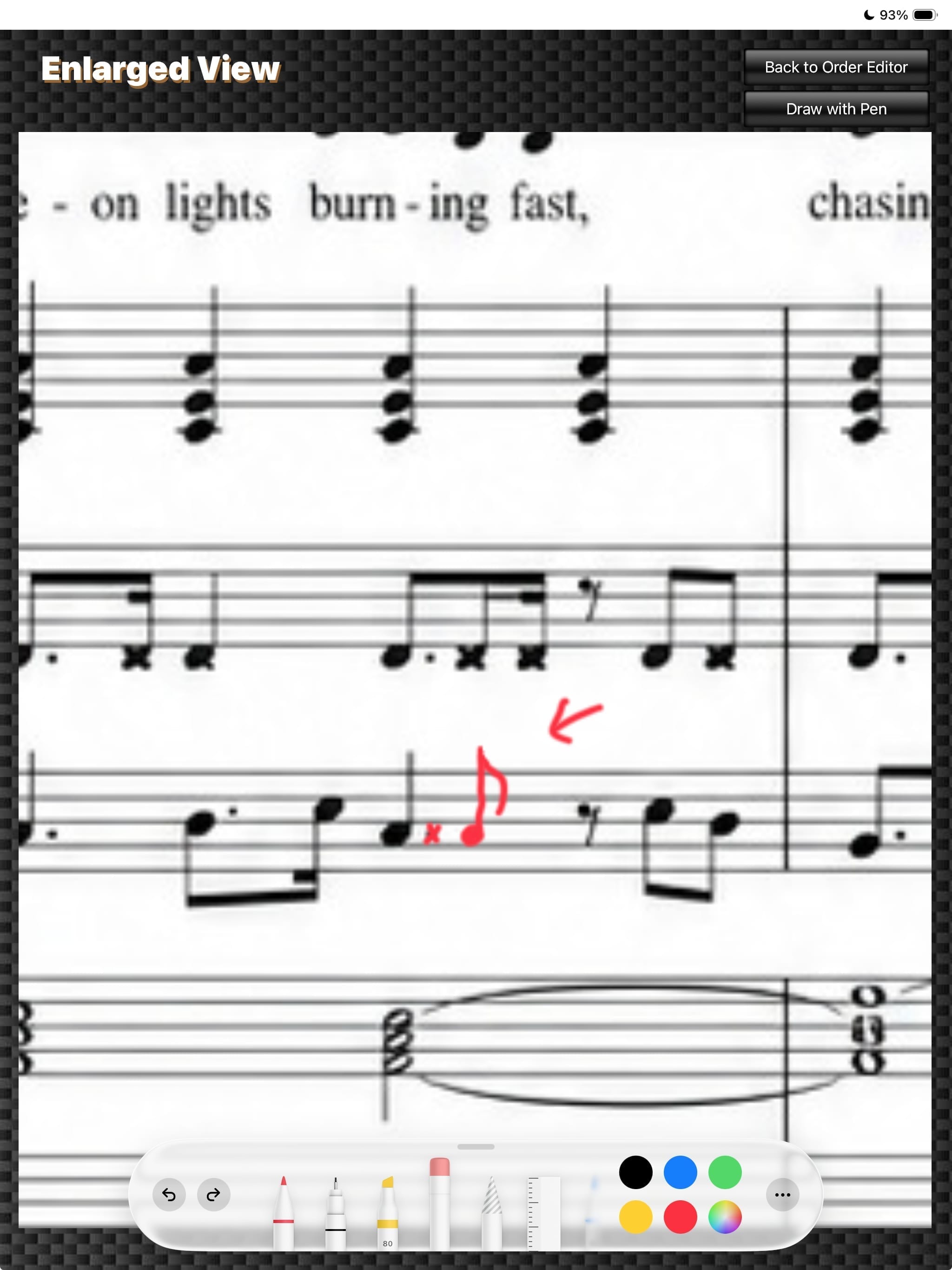
Fig. 3 Enlarged View
(The score image is an original image generated by AI.)
(The score image is an original image generated by AI.)
The "Back to Order Editor" and "Draw with Pen" buttons appear in the upper-right corner of this screen.
On the "Enlarged View" screen:
- Pinch the screen to zoom the image in or out.
- Tap the "Draw with Pen" button to display Apple's standard Markup tools. You can then write letters, symbols, and other markings by hand on the score image using a stylus, Apple Pencil, or a similar device.
- Tap the "Back to Order Editor" button to return to the "Order Editor" screen.
