More Info on "Library"
The Library has two lists: the "Song Title / Artist Name" list and the "Files Imported from External Apps" list.
The Library also has six buttons: "Face Scan Viewer", "Voice Scan Viewer", "Order Editor", "Duplicate Score", "Delete Score", and "Back to Home".
The Library also has six buttons: "Face Scan Viewer", "Voice Scan Viewer", "Order Editor", "Duplicate Score", "Delete Score", and "Back to Home".
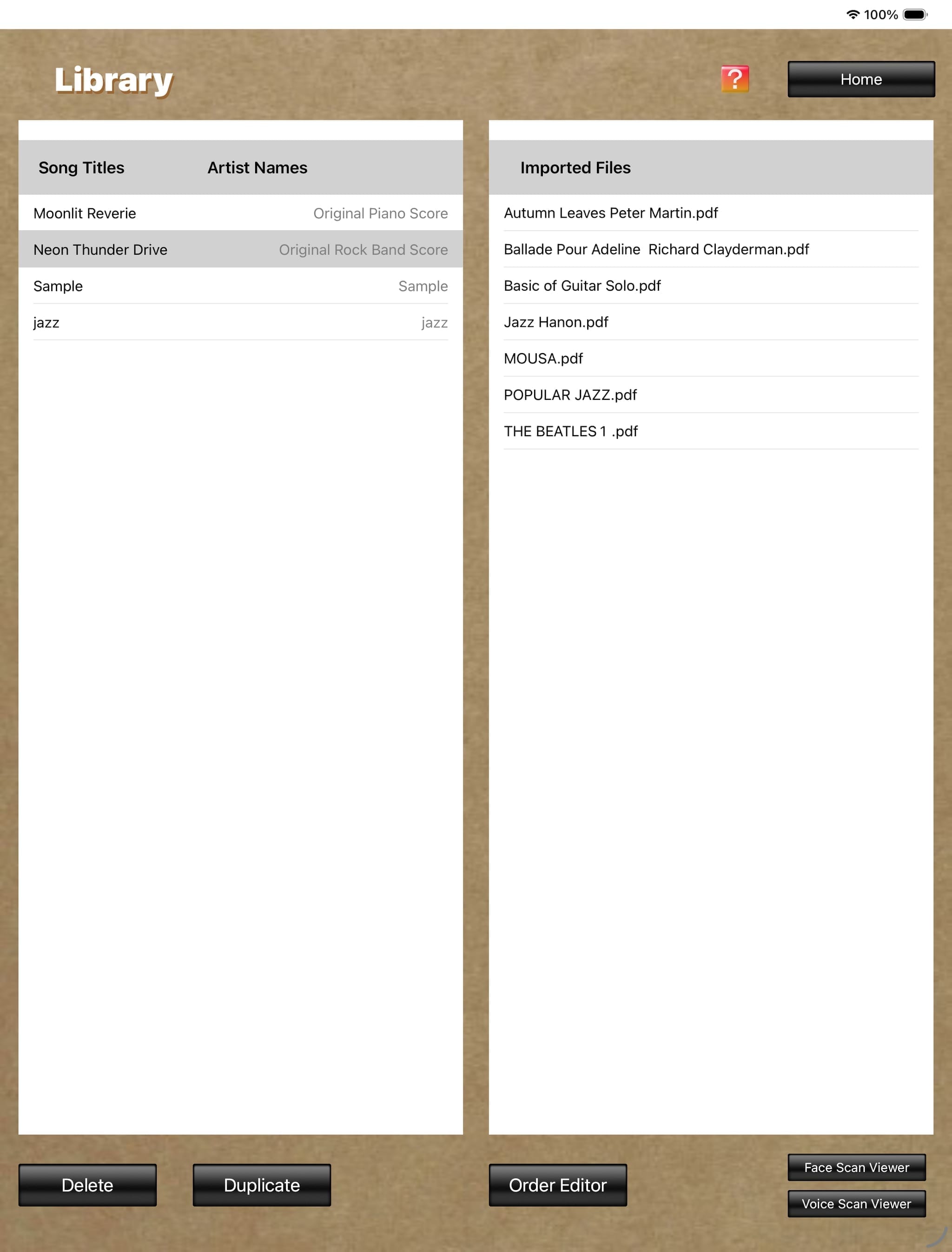
The "Song Title / Artist Name" list shows score image files acquired using FPT+'s "Camera" and "Photo Library" features.
The "Files Imported from External Apps" list shows image files imported from other apps on the iPhone/iPad or from a computer through file sharing, using their original file names.
※
If a score file in "Files Imported from External Apps" is edited using the "Order Editor" and then saved with a song title and artist name, it will subsequently appear in the "Song Title / Artist Name" list.
1.
With a file selected, tapping the "Face Scan Viewer" button opens the "Score Viewer for Face Scan" screen and displays the images. On this screen, you can turn the displayed score pages using four facial states: head tilt, face movement, blink, and smile.
With a file selected, tapping the "Voice Scan Viewer" button opens the "Score Viewer for Voice Scan" screen and displays the images. On this screen, you can turn the displayed score pages using three voice commands: "Next page", "Back page / Previous page", and "First page".
With a file selected, tapping the "Voice Scan Viewer" button opens the "Score Viewer for Voice Scan" screen and displays the images. On this screen, you can turn the displayed score pages using three voice commands: "Next page", "Back page / Previous page", and "First page".
2.
With a file selected, tapping the "Order Editor" button opens the "Order Editor" screen. On this screen, you can change the order of multiple score images included in the score file selected in the Library, copy, cut, and paste score images, and write letters, symbols, and other markings on the score.
3.
With a file selected, tapping the "Duplicate Score" button displays the "Duplicate Score" dialog. Enter the artist name and song title, then tap "OK" to save the duplicated file. Either the artist name or the song title must be different from an already saved score.
4.
With a file selected, tapping the "Delete Score" button displays the "Delete Score" dialog. Tapping "OK" in this dialog deletes the selected score file.
5.
Tapping the "Back to Home" button returns to the "Home" screen.
