More Info on "Preferences (Face Scan)"
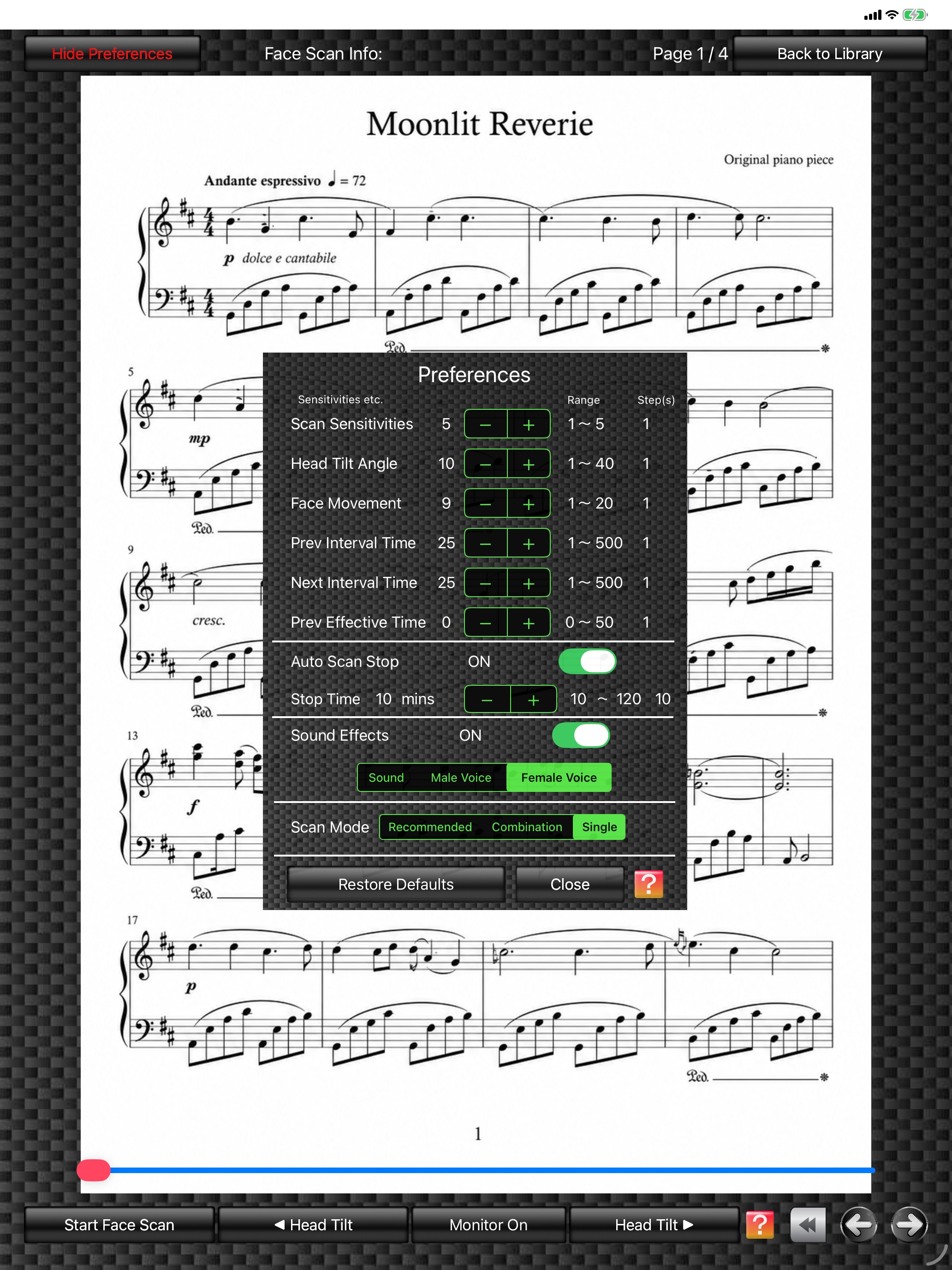
In the "Preferences" window, you can set "Face Scan Sensitivity", "Head Tilt Angle", "Face Movement", "Prev Interval Time", "Next Interval Time", "Prev Effective Time", "Auto Scan Stop", "Sound Effects", and "Scan Mode".
(The score image is an original image generated by AI.)
1.
The higher the "Face Scan Sensitivity" value, the higher the Face Scan sensitivity becomes. However, higher sensitivity can also increase accidental operation, so this value needs to be adjusted appropriately.
Please adjust it by repeating your own tests according to your device model and usage conditions.
Even while the "Preferences" window is displayed, tapping the "Start Face Scan" button starts Face Scan. Changes to the values are reflected immediately, so you can test the operation in real time. Changed settings are saved and used again the next time the app starts.
Please adjust it by repeating your own tests according to your device model and usage conditions.
Even while the "Preferences" window is displayed, tapping the "Start Face Scan" button starts Face Scan. Changes to the values are reflected immediately, so you can test the operation in real time. Changed settings are saved and used again the next time the app starts.
2.
"Next/Prev Interval Time" sets the pause after a page is turned by Face Scan before Face Scan starts again.
Setting the Next/Prev Interval Time longer can prevent accidental continuous page forward/back actions.
Setting the Next/Prev Interval Time longer can prevent accidental continuous page forward/back actions.
3.
"Prev Effective Time" is the grace period during which page-back remains possible immediately after a page-forward action, even when page-back scanning is stopped (Scan OFF) by tapping the "Scan ON/OFF" button in the "◀︎ Back" window.
This feature lets you return to the previous page after an unintended page-forward action caused by accidental operation or user error. You can set that period here.
By default, "Prev Effective Time" is set to "0".(Note)
This feature lets you return to the previous page after an unintended page-forward action caused by accidental operation or user error. You can set that period here.
By default, "Prev Effective Time" is set to "0".(Note)
(Note)
Although the exact timing depends on the device being used, a time value of 1 in the "Preferences" window corresponds to approximately 0.04 seconds. For example, setting "Prev Effective Time" to "25" provides a grace period of approximately one second.
4.
"Auto Scan Stop" automatically stops Face Scan after a certain period of time (Stop Time) has elapsed since the last page turn by Face Scan. This helps reduce unnecessary battery consumption.
"Stop Time" can be set from 10 minutes to 120 minutes in 10-minute steps.
"Stop Time" can be set from 10 minutes to 120 minutes in 10-minute steps.
5.
In "Sound Effects", the ON/OFF toggle turns the page-turning sound effects in the "Score Viewer" on or off.
The "Page Sound | Male Voice | Female Voice" selector lets you switch the page-turning sound effect.
The "Page Sound | Male Voice | Female Voice" selector lets you switch the page-turning sound effect.
6.
"Scan Mode" lets you switch among three Face Scan modes: "Recommended Mode", "Combination Mode", and "Single Mode".
- In "Combination Mode" shown in Fig. 1, various combinations of the four facial states, "Blink", "Head Tilt", "Face Movement", and "Smile", can be detected.
- In "Recommended Mode" shown in Fig. 2, you can select either "Blink + Head Tilt", which combines blink and head tilt, or "Blink + Face Movement", which combines blink and face movement.
Depending on your usage conditions, this "Recommended Mode" provides the most stable Face Scan operation.
- In "Combination Mode" shown in Fig. 1, various combinations of the four facial states, "Blink", "Head Tilt", "Face Movement", and "Smile", can be detected.
- In "Recommended Mode" shown in Fig. 2, you can select either "Blink + Head Tilt", which combines blink and head tilt, or "Blink + Face Movement", which combines blink and face movement.
Depending on your usage conditions, this "Recommended Mode" provides the most stable Face Scan operation.
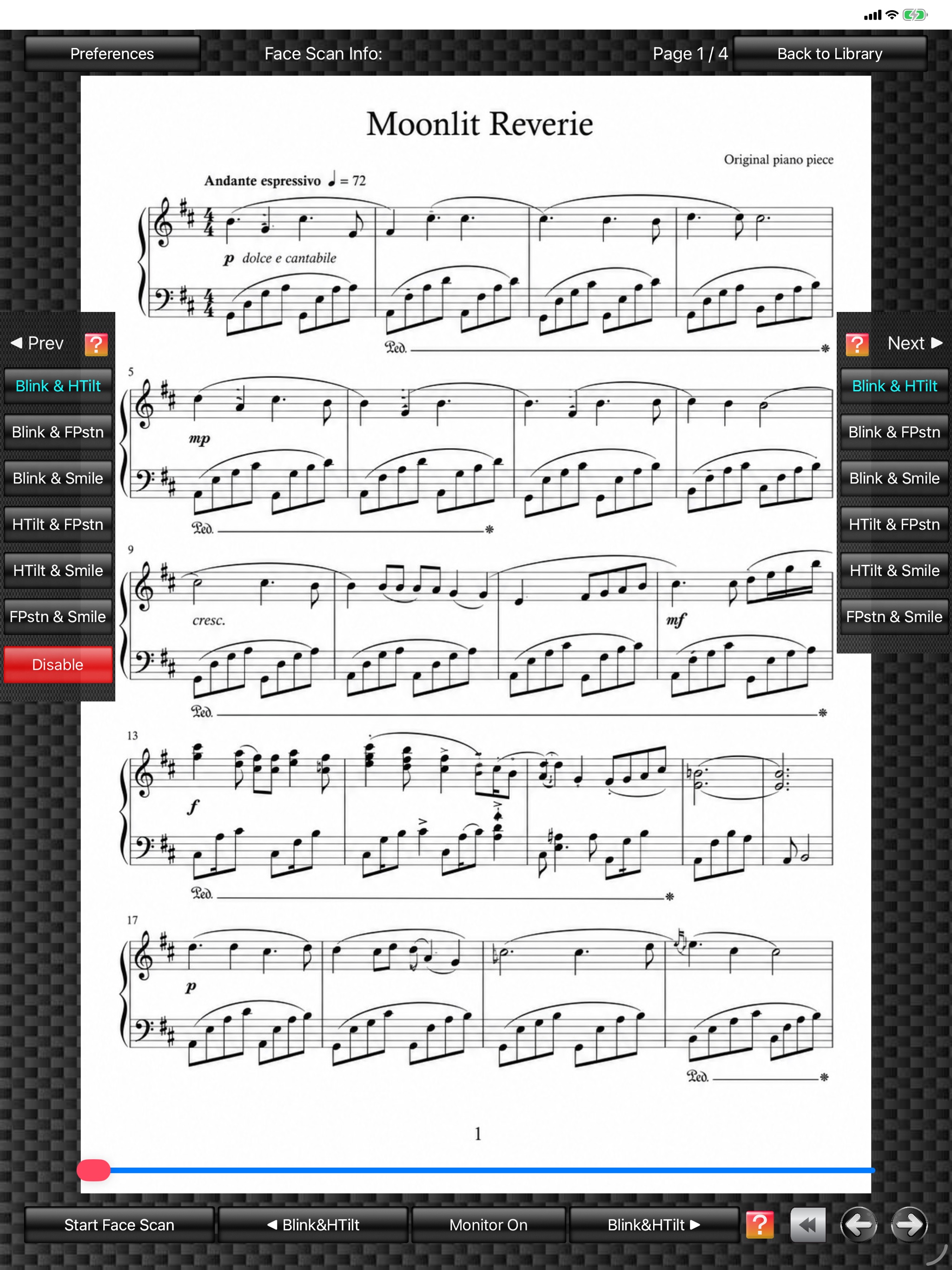
Fig. 1 Combination Mode
(The score image is an original image generated by AI.)
(The score image is an original image generated by AI.)
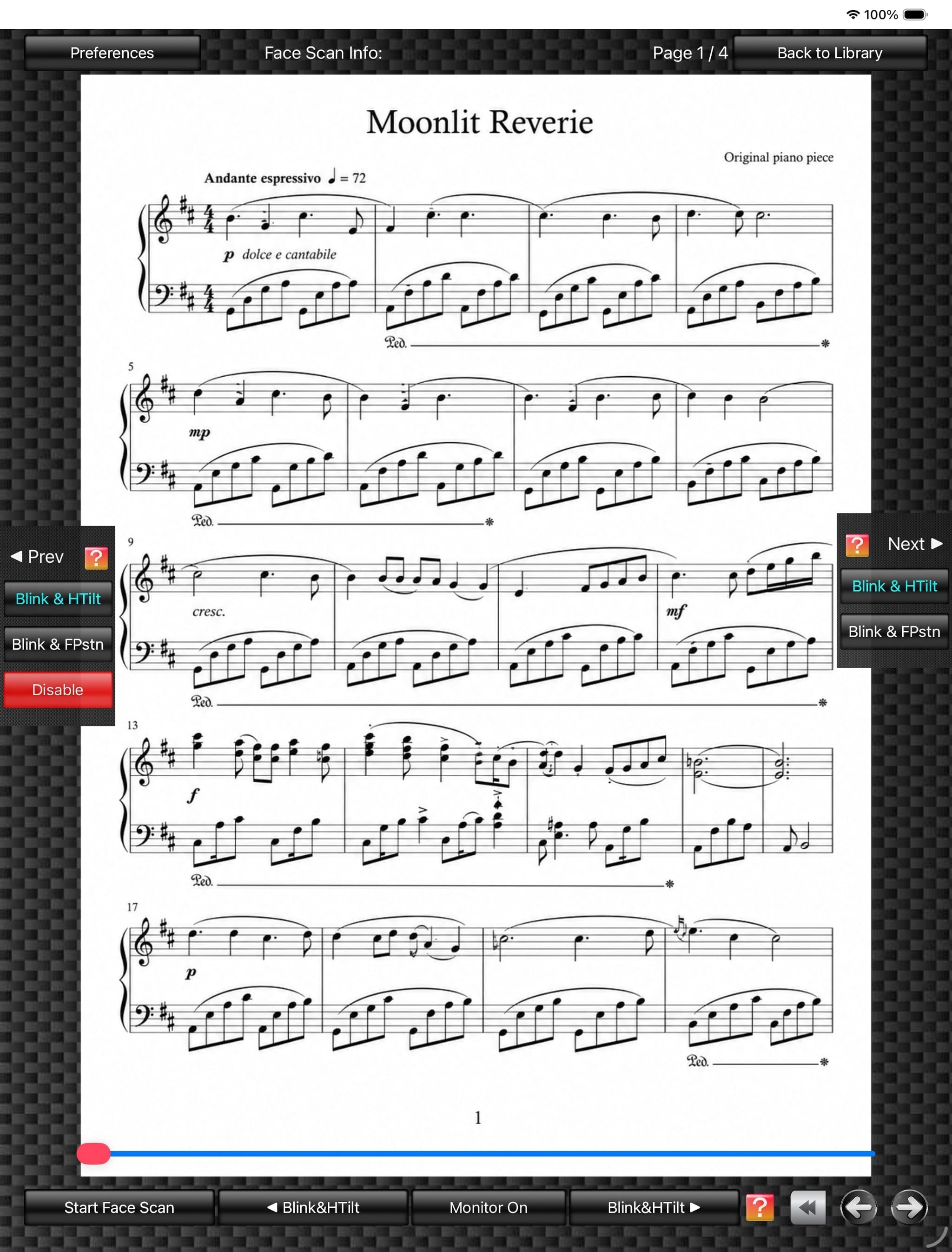
Fig. 2 Recommended Mode
(The score image is an original image generated by AI.)
(The score image is an original image generated by AI.)
7.
Tapping the "Restore Defaults" button restores all settings in "Preferences" to their default values.
8.
Tapping the "Close" button closes the "Preferences" window.
