Importing from Camera
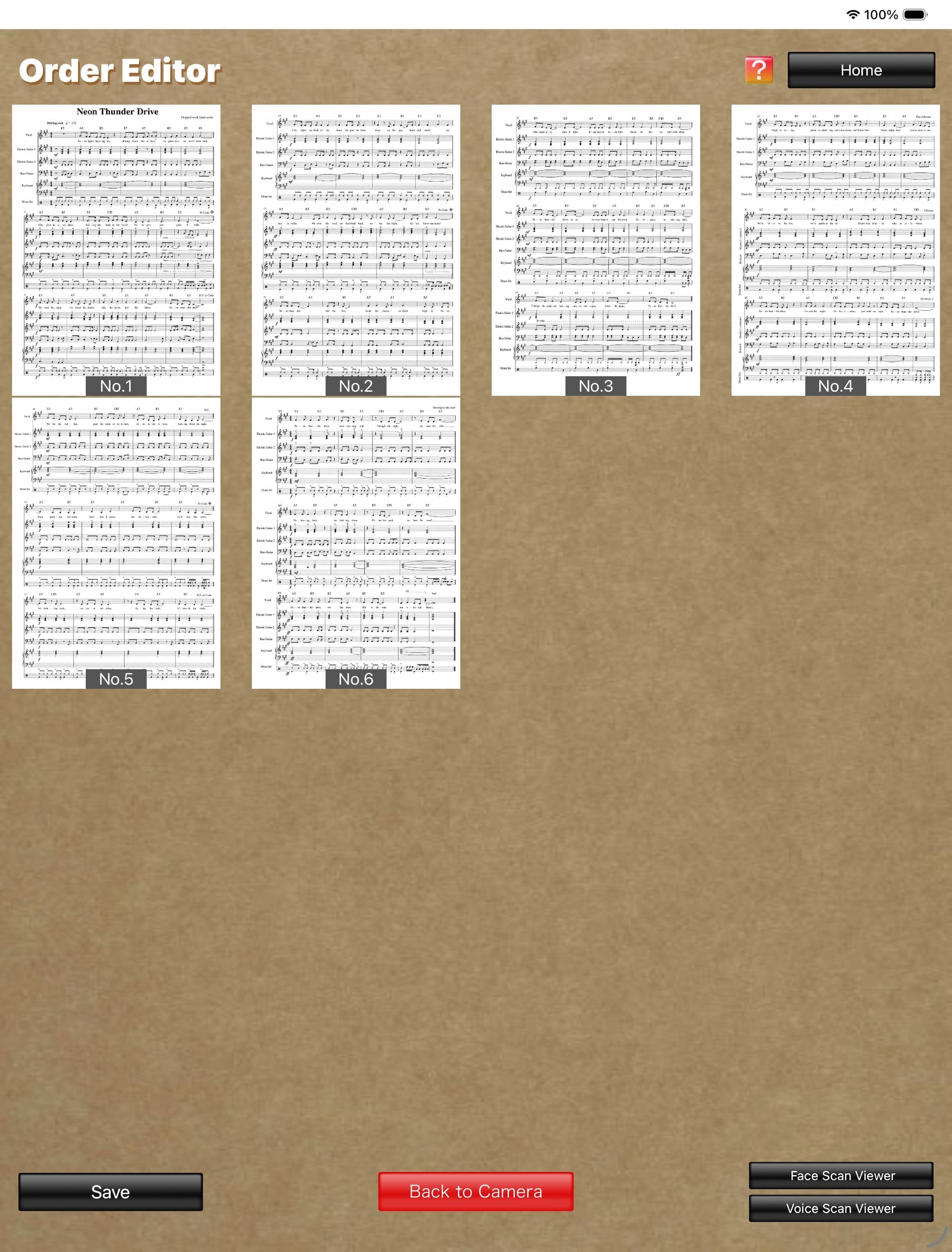
Tapping the "Done" button on the "Camera" screen switches to the "Order Editor" screen, where the captured images are displayed in a list.
Order Editor
(The score image is an original image generated by AI.)
(The score image is an original image generated by AI.)
On the "Order Editor" screen:
- Press and hold an image to copy, cut, or paste it.
- Drag an image with two fingers to edit the display order.
- Tap an image to open the "Enlarged View" screen and display it at a larger size. The "Draw with Pen" button is also displayed on this enlarged screen.
On the "Enlarged View" screen:
- Pinch the screen to zoom the image in or out.
- Tap the "Draw with Pen" button to display Apple's standard Markup tools. You can then write letters, symbols, and other markings by hand on the image using a stylus, Apple Pencil, or a similar device.
- Press and hold an image to copy, cut, or paste it.
- Drag an image with two fingers to edit the display order.
- Tap an image to open the "Enlarged View" screen and display it at a larger size. The "Draw with Pen" button is also displayed on this enlarged screen.
On the "Enlarged View" screen:
- Pinch the screen to zoom the image in or out.
- Tap the "Draw with Pen" button to display Apple's standard Markup tools. You can then write letters, symbols, and other markings by hand on the image using a stylus, Apple Pencil, or a similar device.