Importing from Photo Library
When you select an image on the "Photo Library" screen, the screen switches to the "Order Editor" screen, and the selected image is displayed on that screen.
To import images continuously, tap the "Back to Photo Library" button to return to the Photo Library screen. Select another image to return to the "Order Editor" screen, where that image is added after the images already imported.
By repeating this process, you can import multiple images from the Photo Library into FPT+.
To import images continuously, tap the "Back to Photo Library" button to return to the Photo Library screen. Select another image to return to the "Order Editor" screen, where that image is added after the images already imported.
By repeating this process, you can import multiple images from the Photo Library into FPT+.
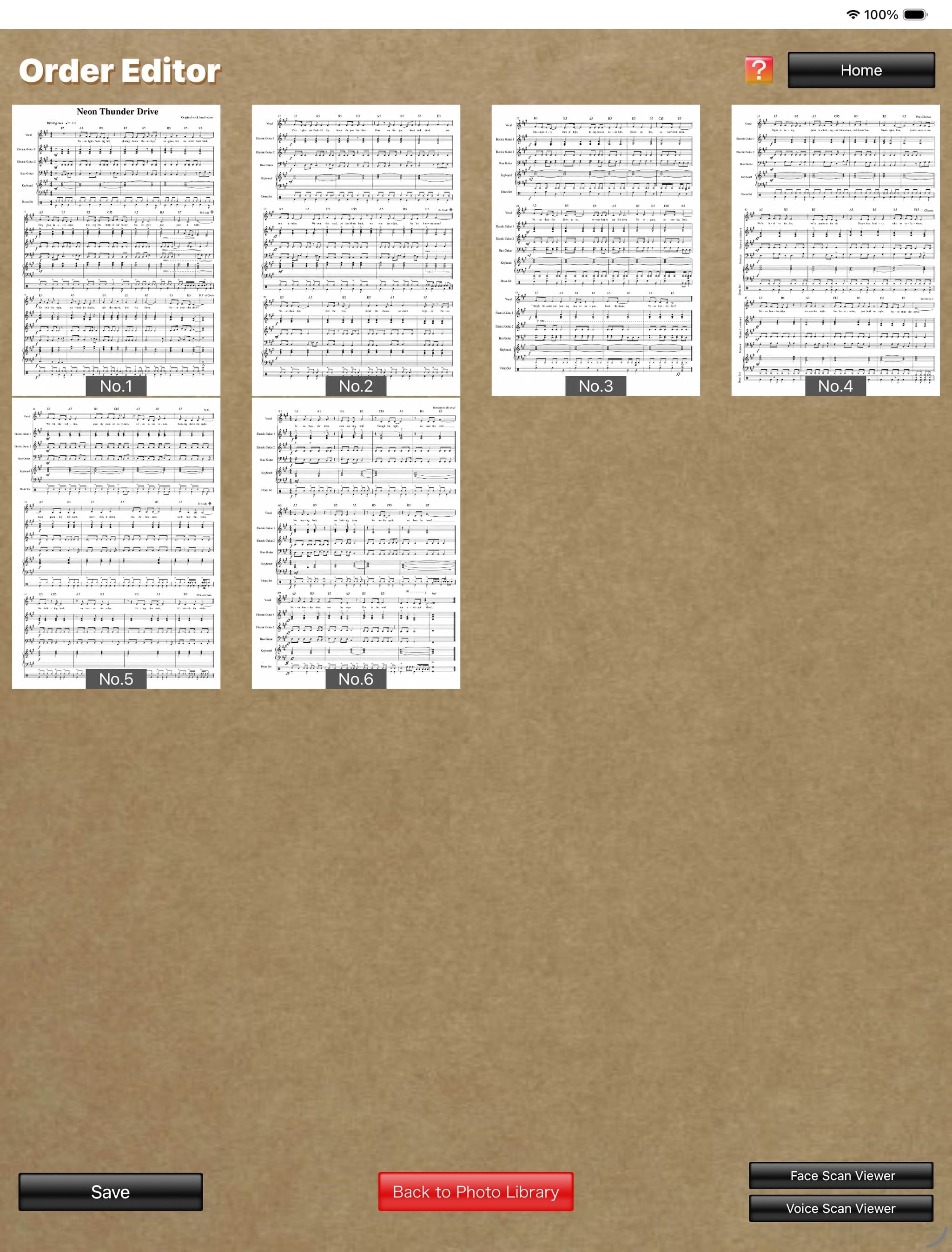
Order Editor
(The score image is an original image generated by AI.)
(The score image is an original image generated by AI.)
On the "Order Editor" screen:
- Press and hold an image to copy, cut, or paste it.
- Drag an image with two fingers to edit the display order.
- Tap an image to open the "Enlarged View" screen and display it at a larger size. The "Draw with Pen" button is also displayed on this enlarged screen.
On the "Enlarged View" screen:
- Pinch the screen to zoom the image in or out.
- Tap the "Draw with Pen" button to display Apple's standard Markup tools. You can then write letters, symbols, and other markings by hand on the image using a stylus, Apple Pencil, or a similar device.
- Press and hold an image to copy, cut, or paste it.
- Drag an image with two fingers to edit the display order.
- Tap an image to open the "Enlarged View" screen and display it at a larger size. The "Draw with Pen" button is also displayed on this enlarged screen.
On the "Enlarged View" screen:
- Pinch the screen to zoom the image in or out.
- Tap the "Draw with Pen" button to display Apple's standard Markup tools. You can then write letters, symbols, and other markings by hand on the image using a stylus, Apple Pencil, or a similar device.